|
Setup Incoming Mail Server
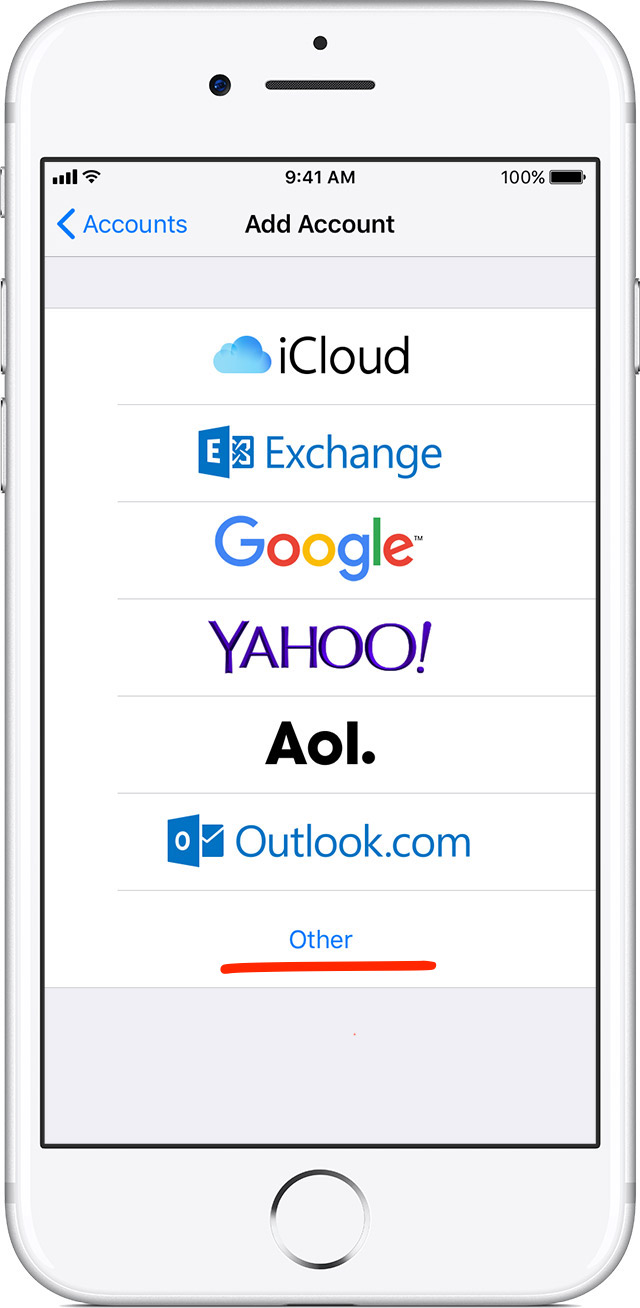
1. Go to Settings > Accounts & Passwords and tap Add Account. If you're using iOS 10.3.3 or earlier, go to Settings > Mail > Accounts and tap Add Account.
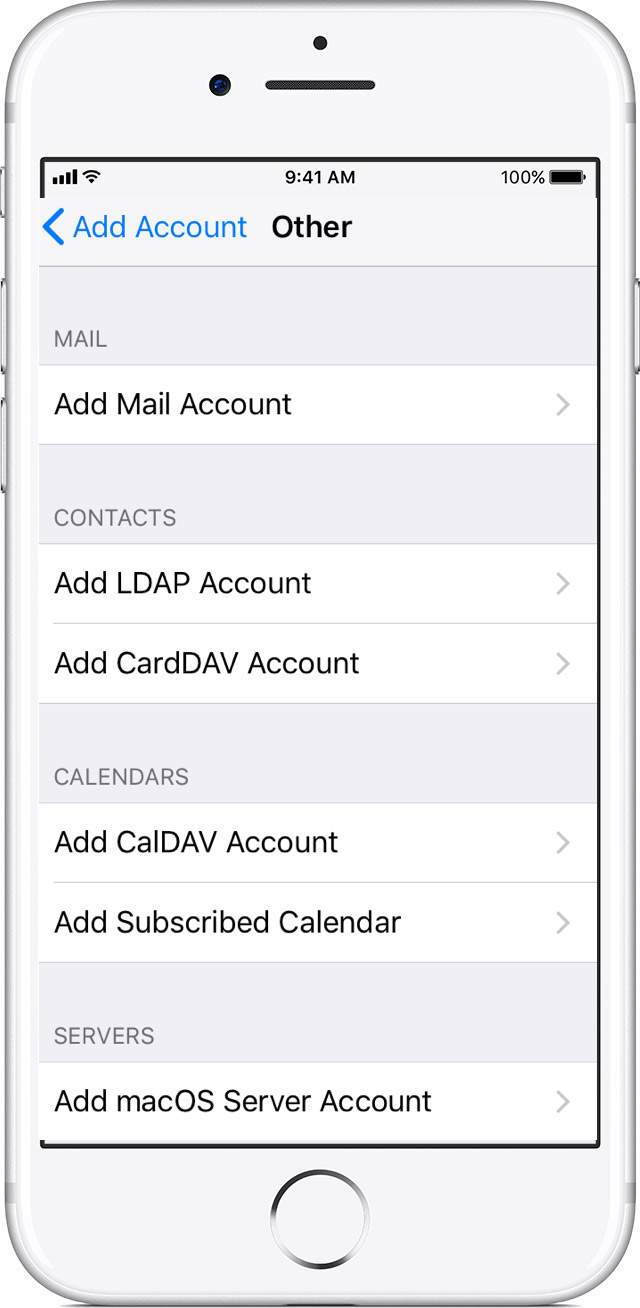
2. Choose Other =>Add Mail Account
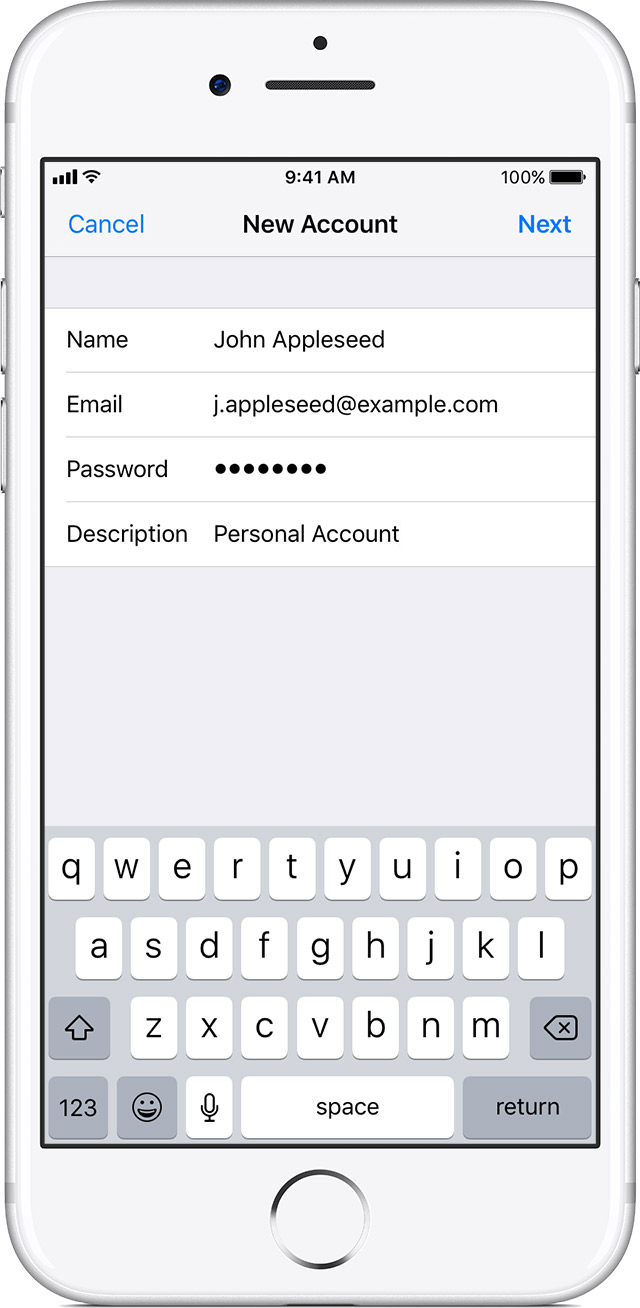
3. Now type your name, email address and password and account description
4. Tap Next and wait for Mail to verify your account.
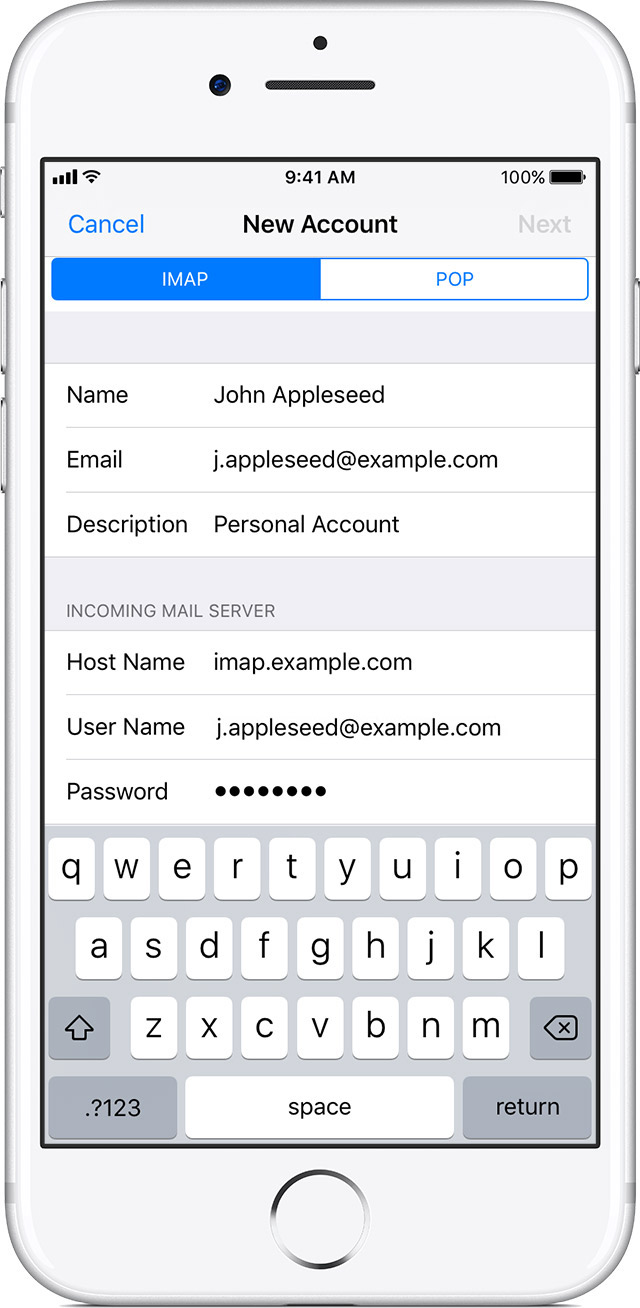
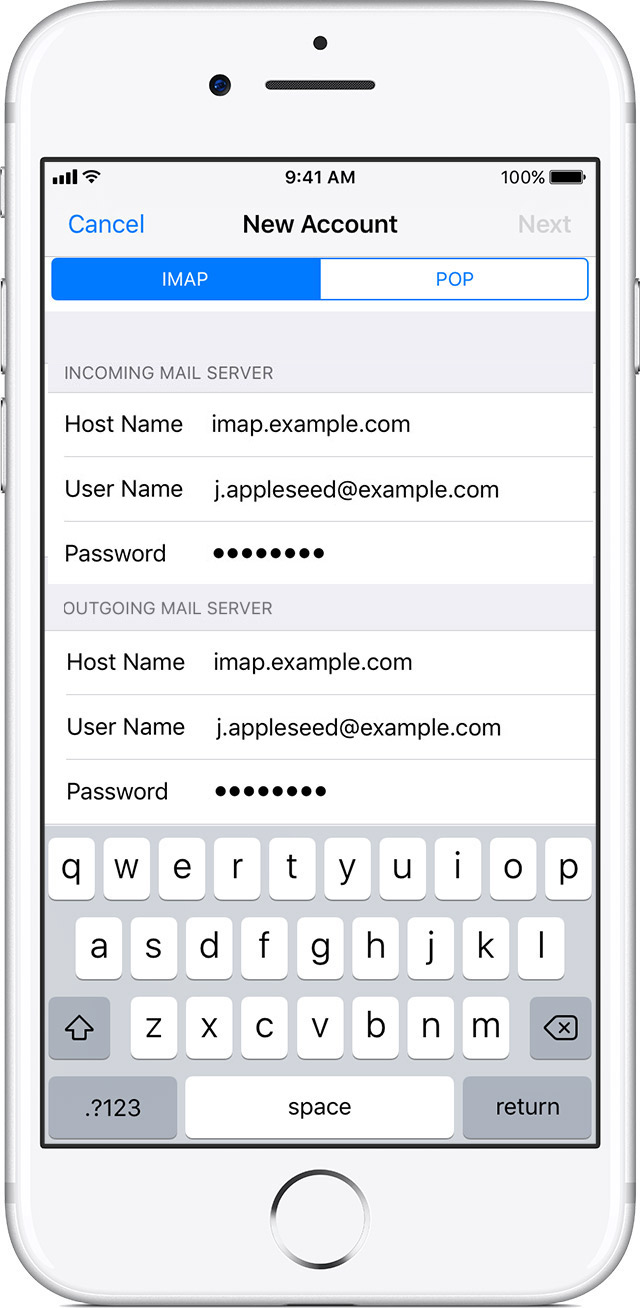
5. Now enter your Incoming mail server details like
a) Host Name: it should be your domain like fo.ae
b) User Name: it should be your full email address.
c) Password: your email account Password
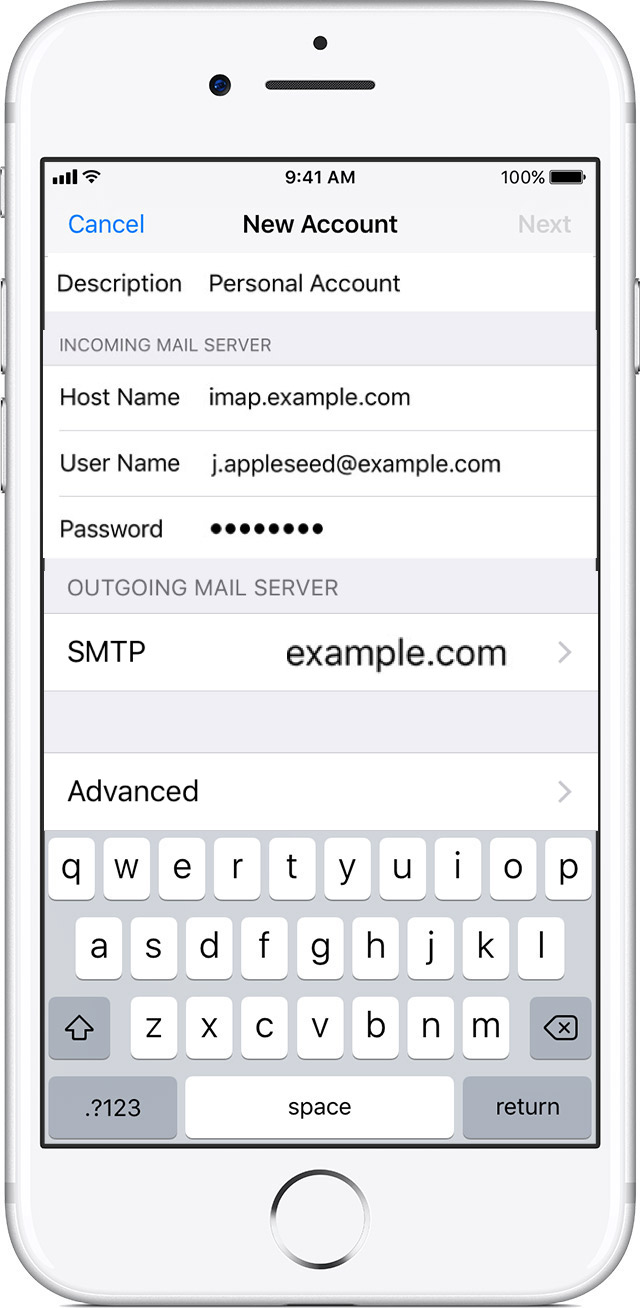
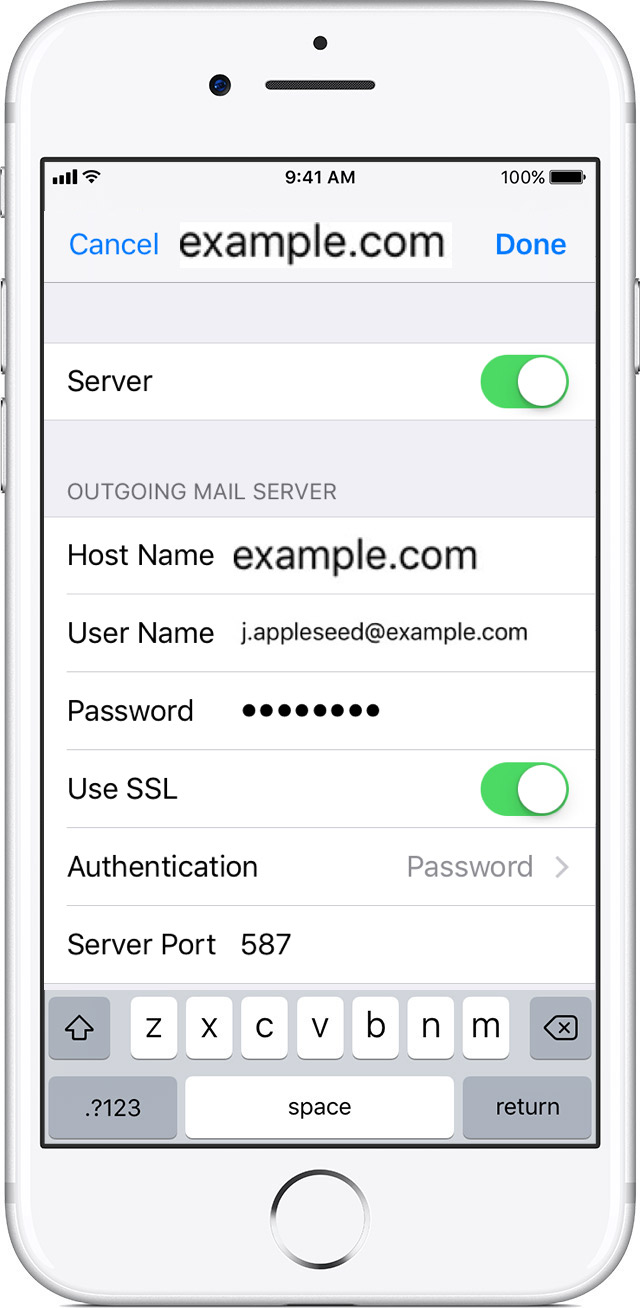
6. Now enter your outgoing Mail server details
a) Host Name: it should be your domain like fo.ae
b) User Name: it should be your full email address.
c) Password: your email account Password
7. Tap Next and wait for Mail to verify your account.
5. Choose information from your email account, like Contacts or Calendars, that you want to see on your device.
6. Tap Save.
If all information is correct your email account will start working.
|