Support
Setup Email Account on Android Using Microsoft Outlook App
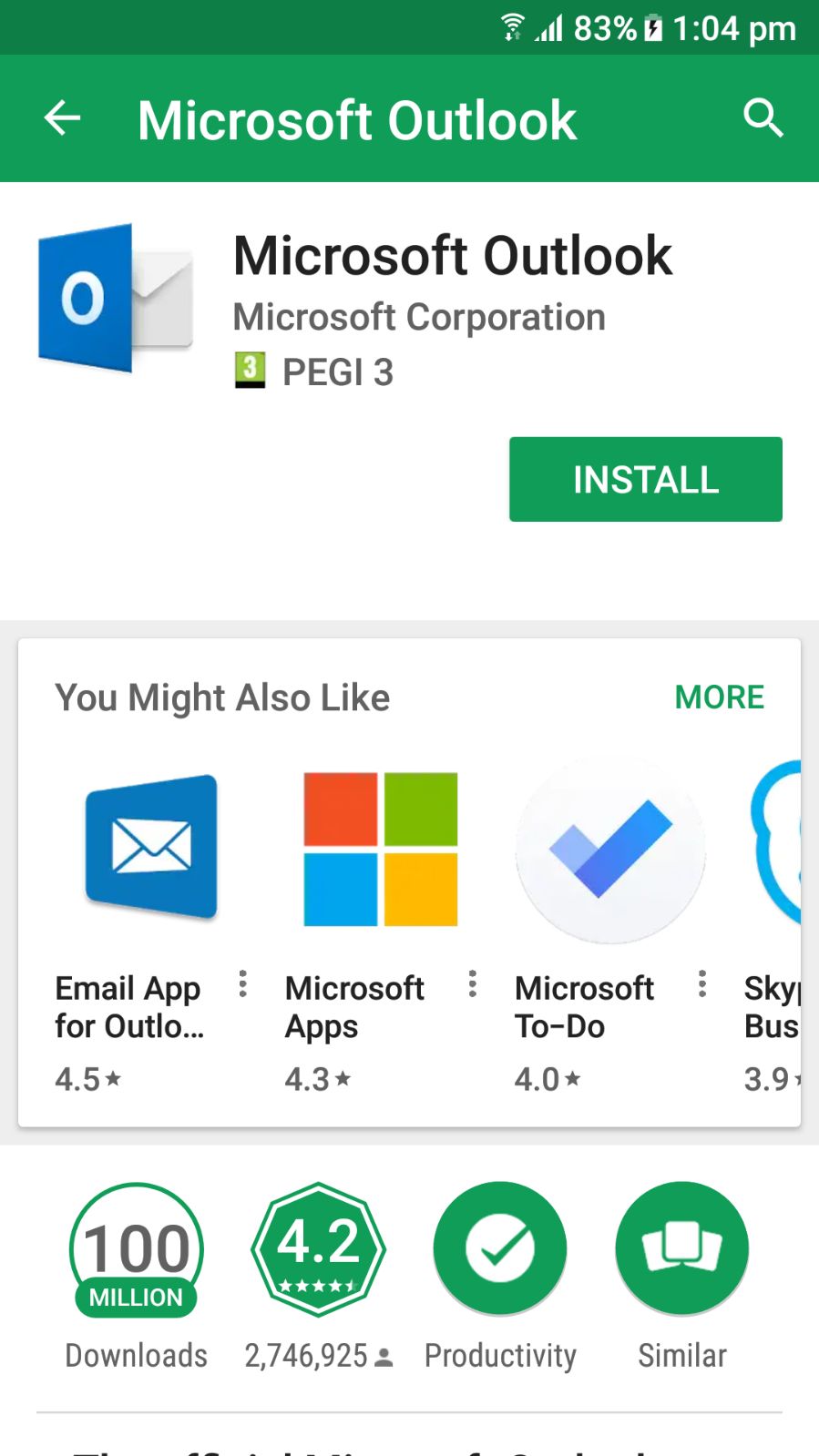
| Setup Email Account on Android Using Microsoft Outlook App 1. Goto Play Store and Install Microsoft Outlook App |
 |
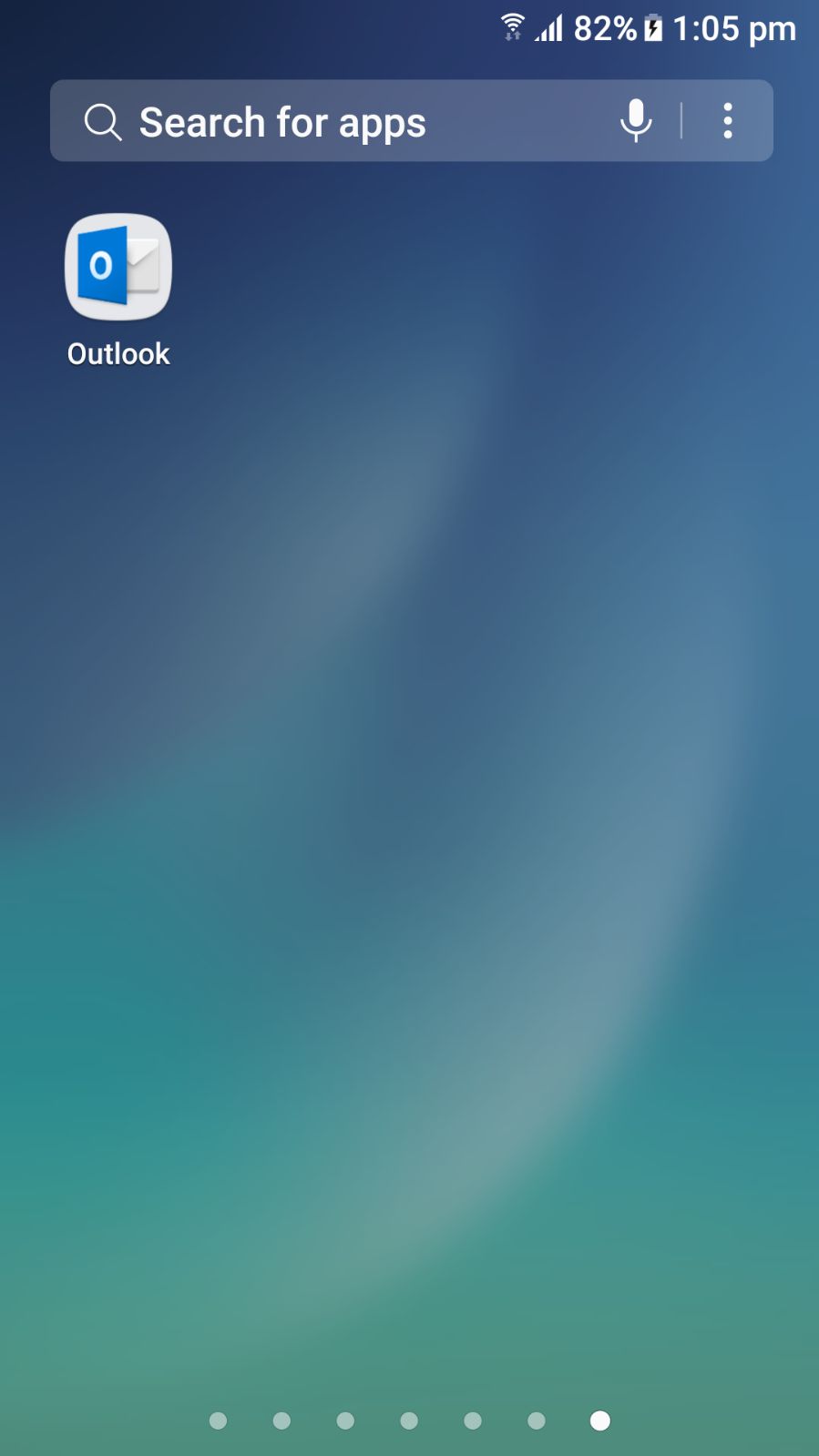
| 2. Now Open Microsoft Outlook App |
 |
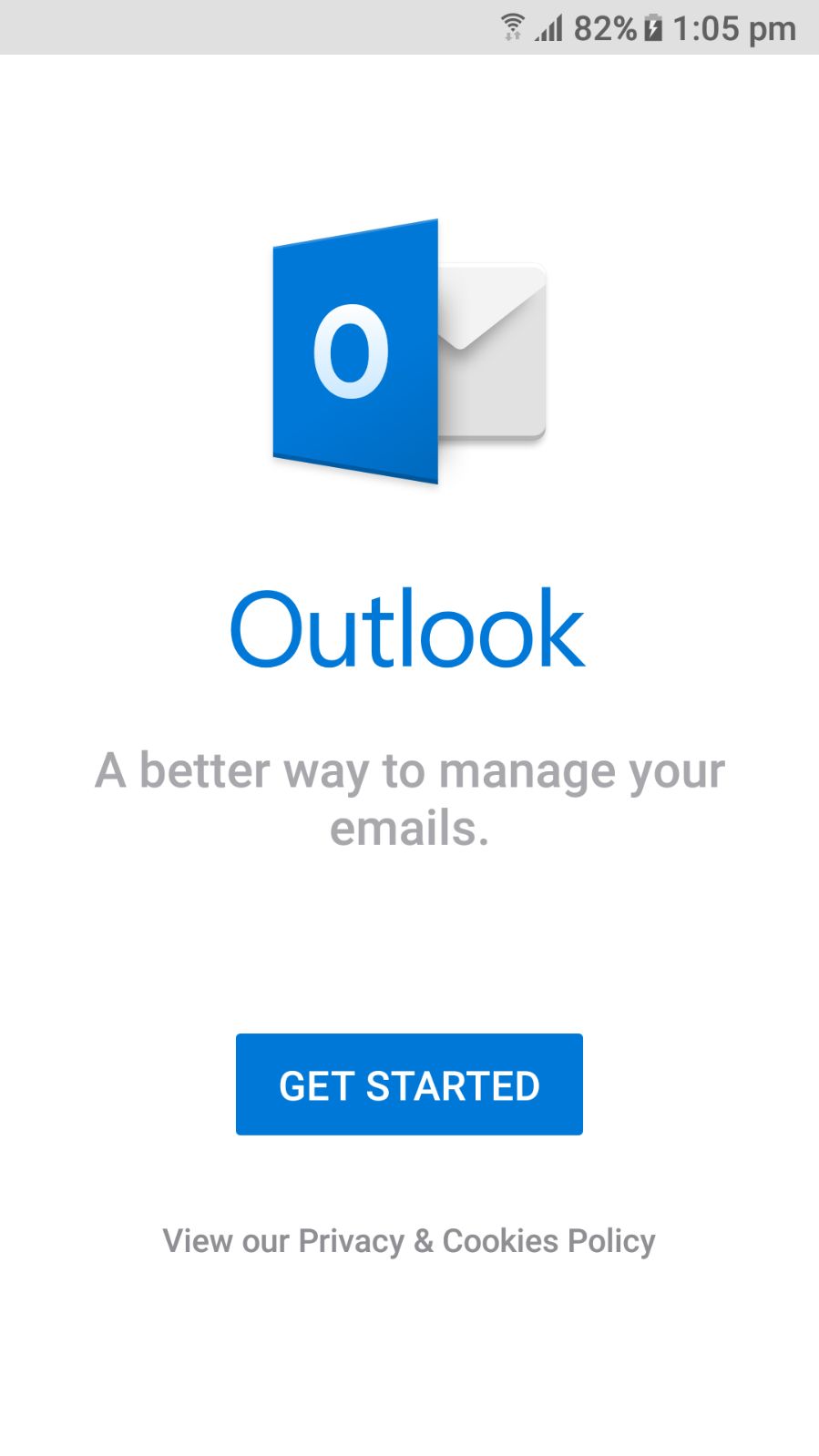
| 3. Tap on Get Started Button |
 |
| 4. Tap Skip on the bottom of the screen |  |
| 5. Enter Your Email account and Tap Continue | 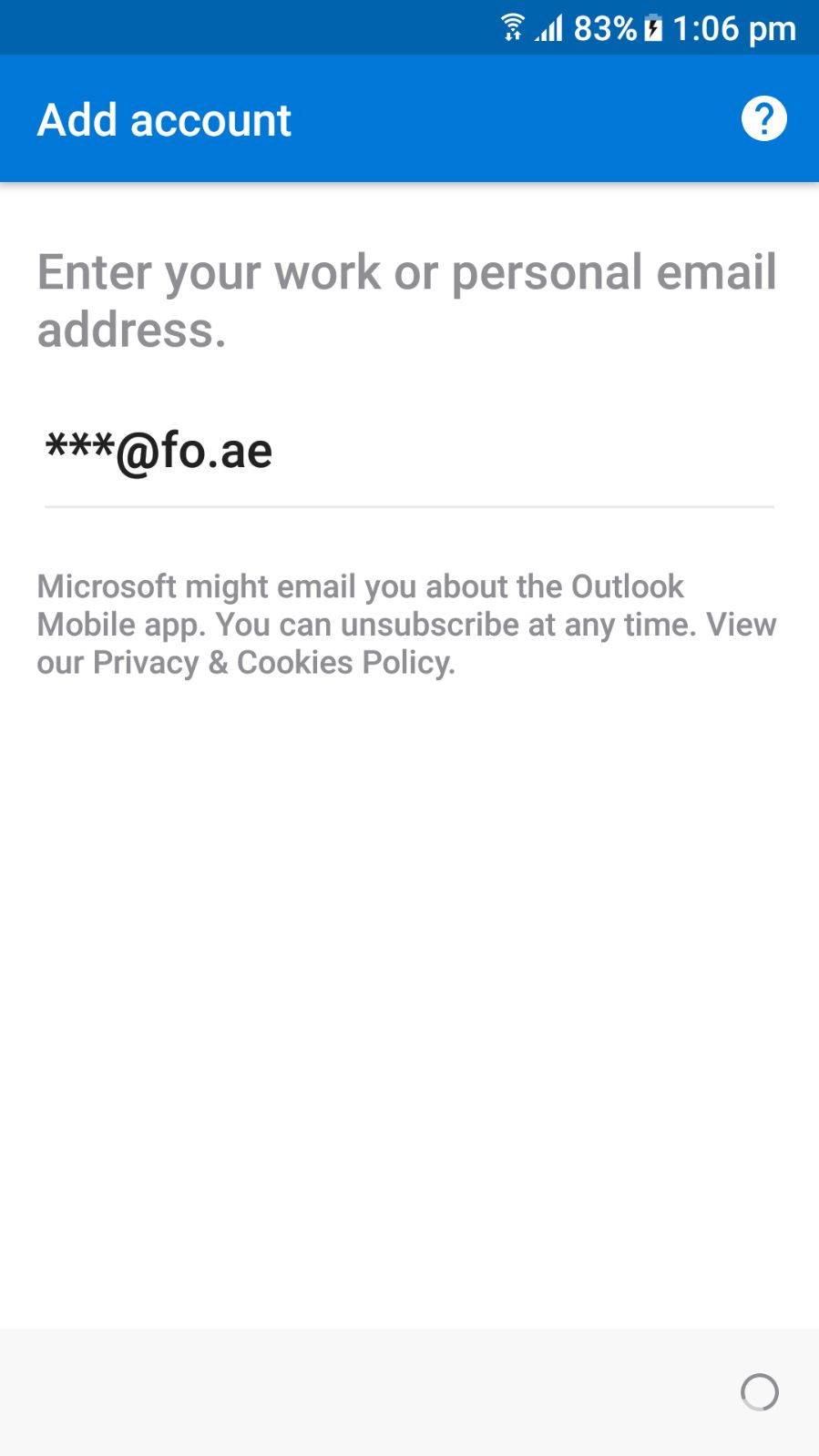 |
| 6. Click on SET UP ACCOUNT MANUALLY | 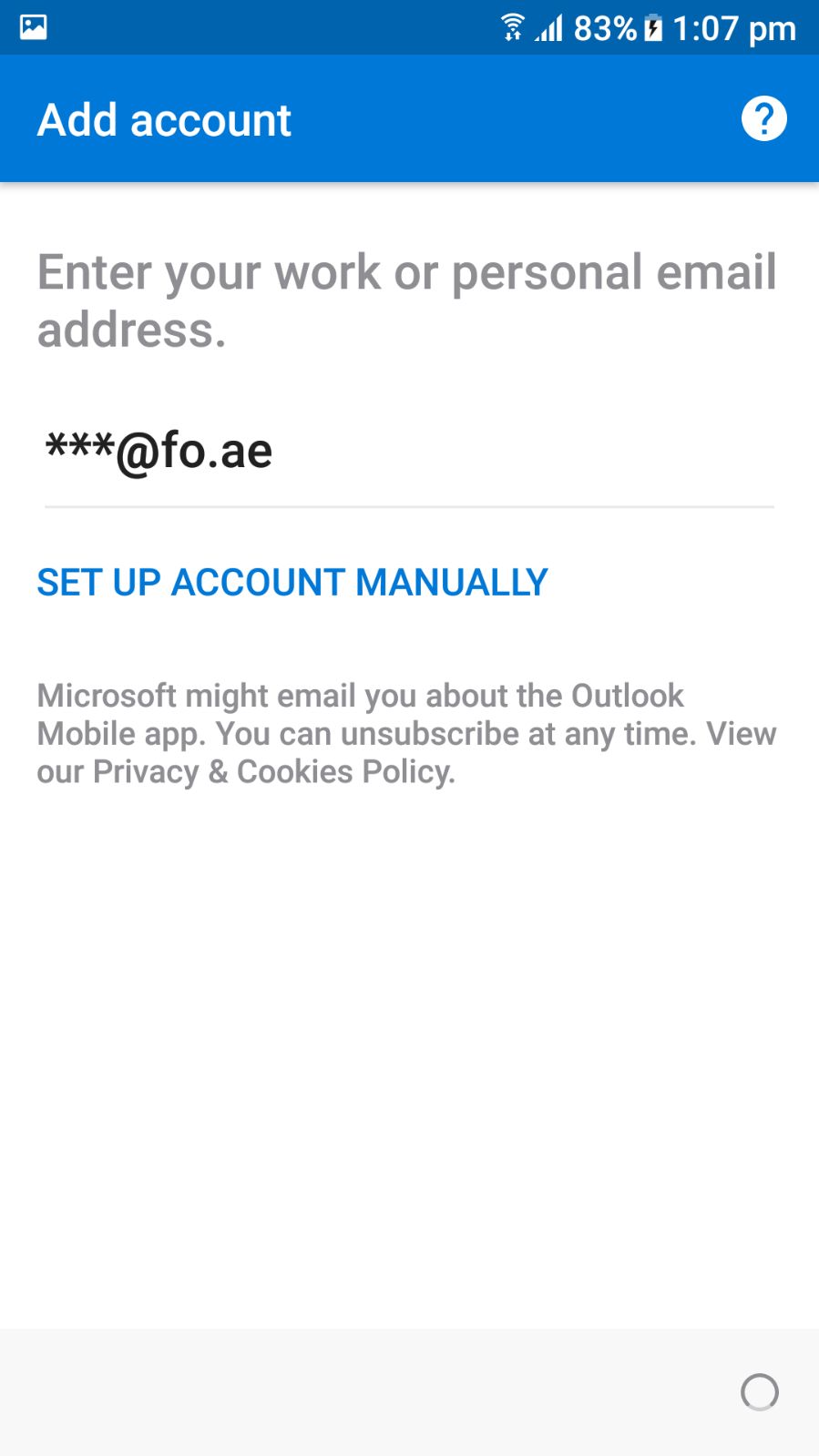 |
| 7. Choose IMAP from Advance | 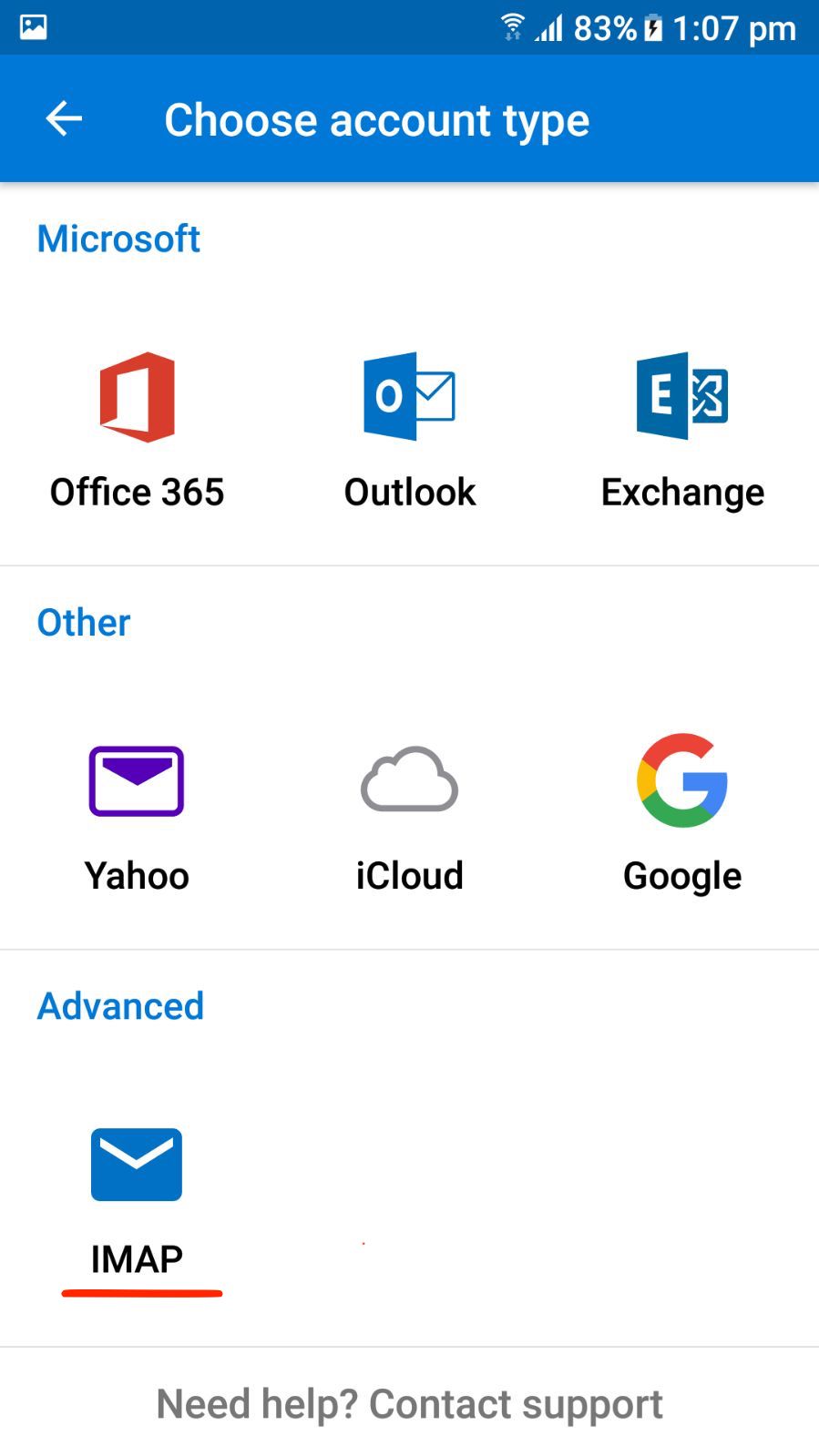 |
|
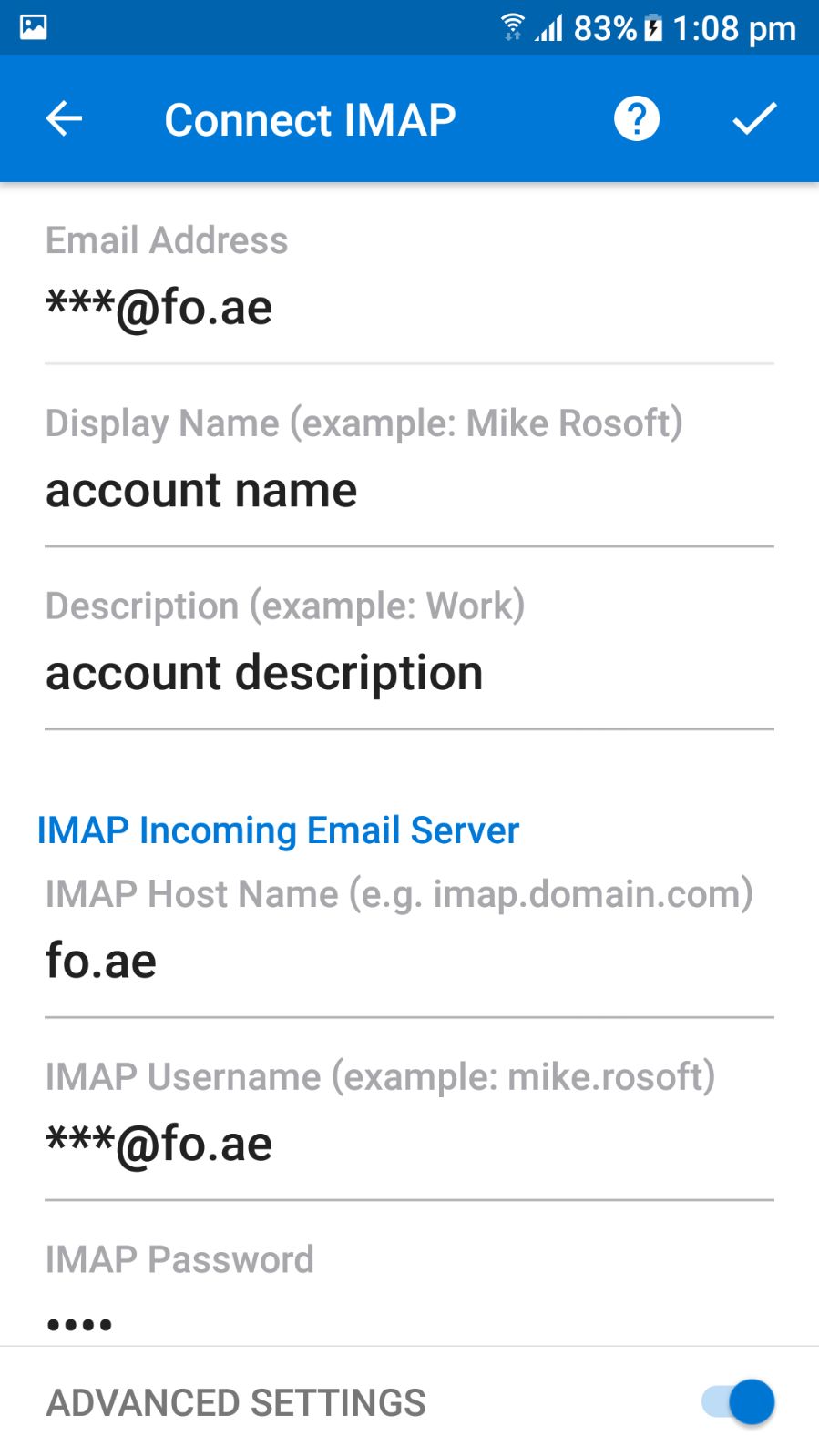
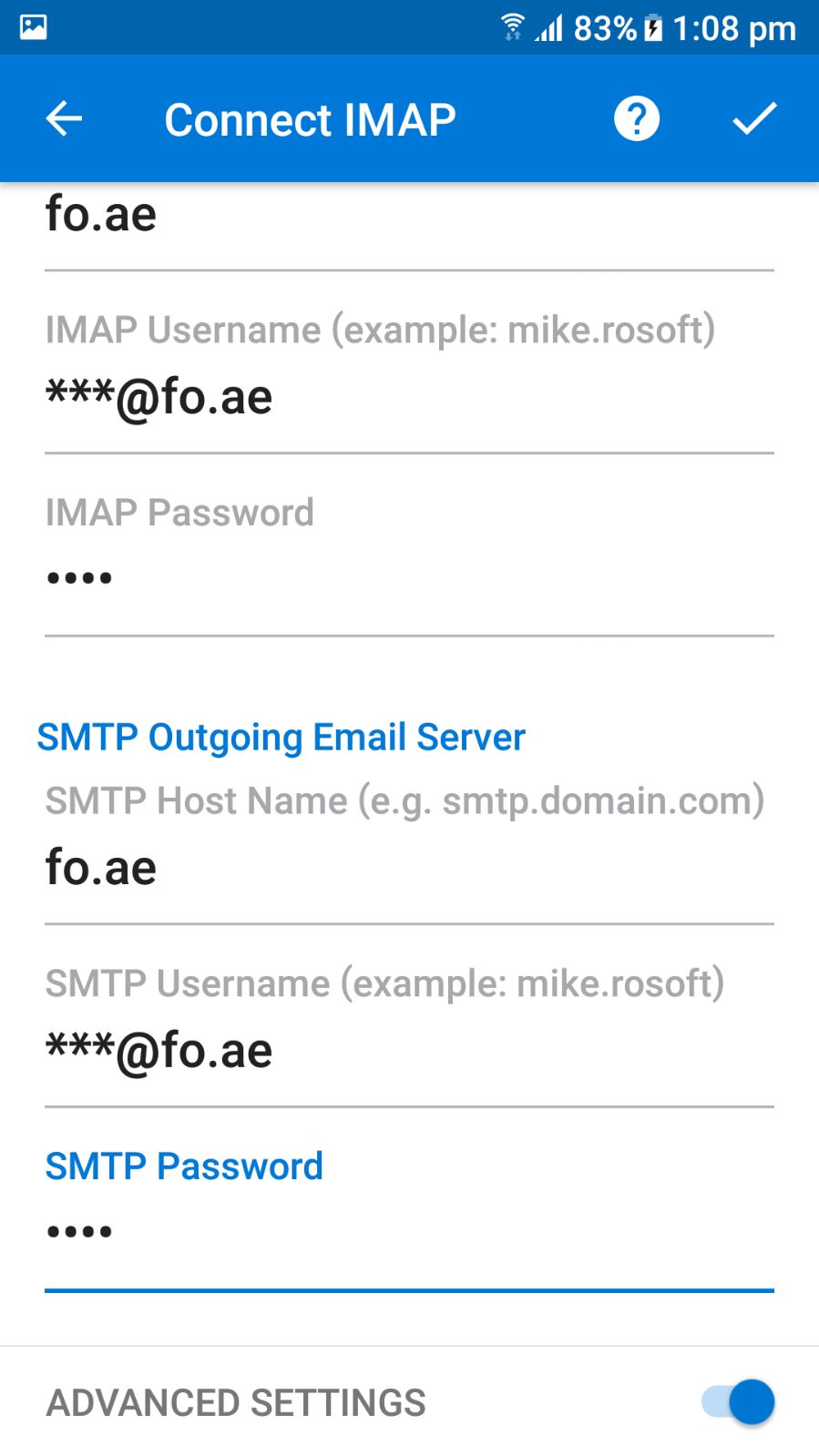
8. Enable Advanced Settings button Add bellow values to your IMAP Incoming mail server a) IMAP Incoming Email server fo.ae (your domain) b) IMAP username: your full email address c) IMAP Password: your email password |
 |
|
9. SMTP Outgoing Email Server Settings a) SMTP Outgoing Email server fo.ae (your domain) b) SMTP username: your full email address c) SMTP Password: your email password 10. Tap on the OK icon on top and It will check your settings if everything is ok, You will be able to send and receive emails. |
 |